




Written by: Aaron Rovner, Founder, Saas Hero
Key Takeaways
- Offline conversion tracking in Microsoft Ads depends on capturing the
msclkidon the landing page and storing it in the CRM so bidding can use real revenue signals. - The workflow runs in five steps: capture the click ID, create the offline conversion goal, wait two hours, build and upload the CSV file, then verify results in reporting.
- Silent failures often come from mismatched goal names,
msclkidvalues that never reach the CRM, uploading before the two-hour wait, or sending conversions outside the 90-day window. - Upload options include manual CSV, scheduled imports, and API. Daily uploads keep Smart Bidding aligned with current pipeline quality.
- SaaSHero manages Microsoft Ads offline conversion tracking, CRM integration, and pipeline maintenance for B2B SaaS teams that want revenue-focused bidding.
Talk With SaaSHero About Your Measurement Setup
Prerequisites And Context
Have these pieces in place before you start the implementation:
- Microsoft Ads account access with permission to create and edit conversion goals
- A CRM such as Salesforce or HubSpot that supports a custom text field on each lead record
- Tag management or developer access to the landing page so you can capture URL parameters
- A clear owner for conversion goal naming and lifecycle-stage definitions
The msclkid is Microsoft’s click identifier, a 32-character GUID that is unique for each ad click. It differs from Google’s gclid. The identifiers look similar but work inside separate systems. Google Ads offline conversion experience does not transfer cleanly to Microsoft Ads because the field names, timing rules, and upload paths differ in ways that often cause silent failures.
The CRM work usually takes longer than the Microsoft Ads configuration. Custom field creation, form mapping, and lifecycle-stage event setup often require coordination with RevOps or engineering, so plan the project timeline around those dependencies.
The 5-Step Microsoft Ads Offline Conversion Workflow
The full pipeline runs in five sequential steps:
- Enable auto-tagging and capture the
msclkidon the landing page - Create the offline conversion goal in Microsoft Ads
- Build and upload the conversion file using the correct field spec after waiting the mandatory 2 hours
- Choose and configure the upload method that fits your volume and latency needs
- Verify in reporting and cross-check against the CRM
Each step depends on the previous one. Skipping or reordering steps often produces uploads that look successful in the UI but result in zero counted conversions.
Step 1: Capture And Store The Msclkid
Microsoft Ads auto-enables msclkid auto-tagging when you create the first offline conversion goal. The platform appends the identifier to the landing page URL as ?msclkid={msclkid}. You can confirm auto-tagging under Campaigns > Settings > Account level options. Disabling auto-tagging blocks offline conversion imports.
The msclkid appears only on the initial landing page URL. It does not automatically persist when the visitor navigates or returns later. Capture it immediately on page load. A standard pattern reads the msclkid parameter with JavaScript, stores it in a first-party cookie or localStorage, then passes it into a hidden form field on the lead form. When the form submits, the CRM record stores the msclkid in a dedicated custom field.
Run a quick validation. Submit a test form from a Microsoft Ads click and confirm that the msclkid value appears on the CRM record. An empty or truncated field means the persistence layer needs to be fixed before you move on.
Common Mistake: The most frequent failure in the pipeline comes from
msclkidvalues that never reach the CRM. Short cookie lifetimes, unmapped hidden fields, or single-page apps that do not re-read the URL parameter on navigation all produce emptymsclkidfields at scale. Every upload built on those records will silently fail.
Step 2: Create The Offline Conversion Goal
Start in Conversions > Conversion goals > Create conversion goal > Offline conversions. The name you choose here becomes the key that every upload file must match exactly. Microsoft Ads does not allow reuse of a goal name for a different goal, and a single character difference in the CSV causes silent rejection.
Set the conversion window to the maximum of 90 days so longer B2B sales cycles are covered. If deal values vary, configure revenue as variable so bidding can learn from actual deal size instead of a flat value. Create offline conversion goals with the manual setup workflow, since the simplified setup flow does not support them.
The goal must finish processing before any upload will count. Microsoft Ads requires a 2-hour wait after creating a new offline conversion goal before you upload conversions for that goal.
Common Mistake: Uploading within the 2-hour window is a leading cause of conversions not counting. The file passes format checks and shows as successful, but the conversions never record.
Step 3: Build The Upload File With The Correct Csv Field Spec
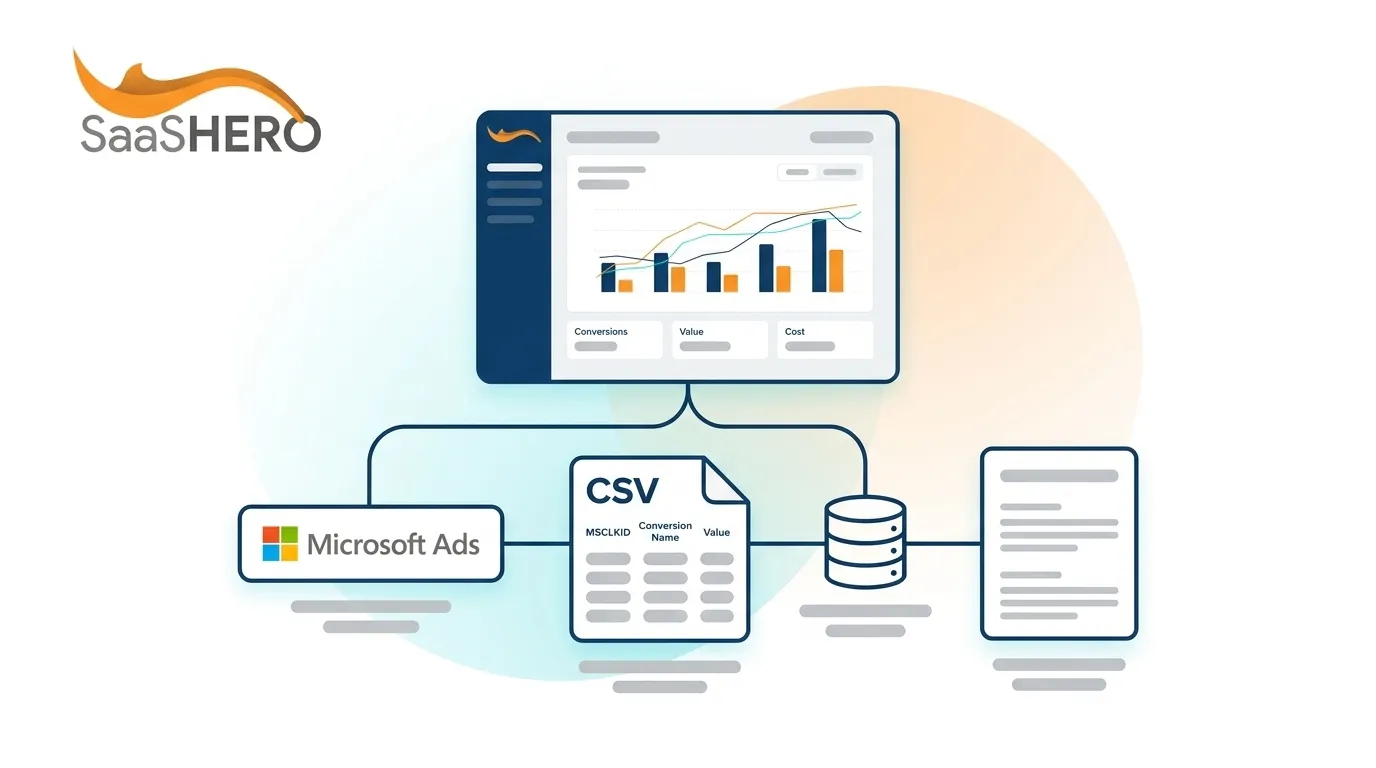
The upload file must use the exact column names Microsoft Ads expects. A single mismatched header can cause the entire file to be rejected or silently ignored. The table below maps each required and optional field to its format rules and a working example so you can build a reusable template.
| Field Name | Required? | Description | Example |
|---|---|---|---|
MicrosoftClickId |
Yes | The 32-character GUID from the ad click, captured from the landing page URL parameter msclkid |
abcd1234efgh5678ijkl9012mnop3456 |
ConversionName |
Yes | Must exactly match the offline conversion goal name created in the UI, including capitalization | Closed Won - Enterprise |
ConversionTime |
Yes | Must occur after the click time; accepts formats such as yyyy-MM-dd HH:mm:ss and yyyy-MM-ddTHH:mm:ss |
2026-09-15 14:30:00 |
ConversionValue |
No | Numeric value 0–999999999999 with up to 3 decimal places, period as decimal separator, no negatives | 24500.00 |
ConversionCurrency |
No | Valid ISO 4217 currency code; if omitted, Microsoft uses the goal’s default currency | USD |
| Hashed Email | No (Enhanced) | SHA-256 hash of the normalized email address; required for enhanced conversions | b4c9a289323b21a01c3e940f150eb9b8... |
| Hashed Phone | No (Enhanced) | SHA-256 hash of the E.164-formatted phone number; required for enhanced conversions | 1a2b3c4d5e6f7a8b9c0d1e2f3a4b5c6d... |
Common Mistake: Goal-name mismatch often causes silent failure. A trailing space, capitalization change, or renamed goal in the UI can cause every row in the upload to be rejected without a clear error. Copy the goal name directly from the Microsoft Ads UI into the upload template.
Step 4: Choose Your Upload Method
Microsoft Ads supports three upload paths, and the right choice depends on conversion volume, latency tolerance, and engineering support. The table below compares the options so you can match the method to your pipeline instead of defaulting to manual CSV.
| Method | Best For | Latency | Maintenance |
|---|---|---|---|
| Manual CSV Upload | Low volume, one-off backfills, and initial testing | On-demand, with data taking up to 5–6 hours to appear in reporting | Manual; an operator must remember to upload |
| Scheduled Import (HTTPS/SFTP) | Recurring batches from CRM exports and mid-volume pipelines | Batch-based; frequency set by schedule, with daily runs recommended | Requires a stable hosted file and URL; URL issues often cause silent failure |
ApplyOfflineConversions API |
High volume and near-real-time CRM-to-ads sync | Near real-time, with data taking up to 5–6 hours to appear in reporting | Requires engineering support, and all API uploads must use Greenwich Mean Time (GMT) |
Microsoft recommends daily offline conversion uploads. Less frequent uploads can weaken auto-bidding performance, especially for Maximize Conversions and Target CPA strategies.
Troubleshooting: OneDrive and SFTP URL misconfiguration often causes scheduled imports to fail silently. The file must be reachable at the exact URL configured in Microsoft Ads when the import runs. Redirects, authentication prompts, or moved files all break the import without a clear UI alert. Test the URL directly before you rely on the schedule.
Step 5: Timing, Deduplication, And Verification
Three timing rules determine whether an uploaded conversion counts:
- 90-day upload window: Conversions uploaded more than 90 days after the last click do not import. Treat this as a hard cutoff.
- Conversion time after click time: The
ConversionTimevalue in the upload file must occur after the original ad click timestamp. - Reporting lag: Non-UET conversions, including offline conversions, may take up to 5 hours to appear in reporting. A missing conversion in the first few hours does not always indicate failure.
Microsoft Ads applies duplicate suppression using the combination of MicrosoftClickId, ConversionName, and ConversionTime. If that exact combination appears again, the later row is ignored and the first instance remains. A single click ID can map to multiple conversion goals or multiple events for the same goal as long as each row uses a different conversion time.
Verify the pipeline by checking upload status in Conversions > Offline conversions after the 5-hour reporting window. Then cross-reference counted conversions against the CRM records in the file. Any discrepancy between the two becomes the starting point for troubleshooting.
Common Mistake: Re-uploading the same file does not force a conversion to count. Duplicate suppression discards every row that matches a previous
MicrosoftClickId+ConversionName+ConversionTimecombination. When a conversion is missing, investigate the data and timing rather than the upload count.
Troubleshooting: Why Your Microsoft Ads Offline Conversions Are Not Counting
If the verification step in Step 5 reveals a mismatch between CRM records and Microsoft Ads reporting, the cause usually falls into one of the failure modes below. Each appears as a symptom with its likely cause and a practical fix.
Symptom: Upload succeeds but zero conversions appear after 5+ hours.
- Cause A —
msclkidnot persisting from click to CRM: The click ID field on the CRM record is empty or truncated. Fix this by auditing the hidden form field mapping and cookie orlocalStoragelogic. Submit a test form from a live Microsoft Ads click and inspect the CRM record directly. - Cause B — Click IDs too old or not associated with the account: Microsoft Ads accepts uploads that contain click IDs outside the allowed window or from another account because the file format is valid. The upload shows as successful, but the conversions do not count. Confirm that
msclkidvalues in the file come from the correct account and fall within the 90-day window mentioned in Step 5. - Cause C — Goal created less than 2 hours before upload: The goal has not finished processing. Wait the full 2 hours after creation, then upload again.
Symptom: Some rows count, others do not.
- Cause —
ConversionNamemismatch: Rows that use a goal name that does not exactly match the Microsoft Ads UI name are silently rejected. Copy the goal name character-for-character from the UI and check for trailing spaces or encoding changes introduced by CRM exports.
Symptom: Scheduled import runs but no new conversions appear.
- Cause — SFTP or HTTPS URL misconfiguration: The hosted file is unreachable when the schedule runs. Test the URL in a browser or with a curl request. Confirm that the file is accessible and that any credentials stored in Microsoft Ads remain valid.
Symptom: Conversions counted once but later uploads for the same leads are ignored.
- Cause — Duplicate suppression: The same
MicrosoftClickId+ConversionName+ConversionTimecombination was uploaded earlier. Avoid re-uploading processed rows. When you need to correct revenue, use the Restate adjustment type instead of resending the original row.
Symptom: Conversions are missing in reporting immediately after upload.
- Cause — Reporting lag: Non-UET conversions may take up to 5 hours to appear. Wait the full window before assuming failure. UET-based conversions often appear within 2 hours, while offline conversions lag by several additional hours.
Symptom: API uploads lose conversions intermittently.
- Cause — Timezone not converted to GMT: All API uploads must use Greenwich Mean Time (GMT). If times are not converted, some conversions fall outside the valid window. Enforce GMT conversion in the pipeline before calling the API.
Measuring Success With Crm Outcomes
Platform-reported conversion counts provide an initial signal, but CRM outcomes show whether the pipeline is healthy. A B2B evaluation framework focuses on qualified pipeline from Microsoft Ads clicks, cost per sales-qualified lead by campaign, and closed revenue tied back to specific ad interactions.
Several structural factors complicate B2B measurement:
- Long sales cycles: A 90-day conversion window covers many B2B deals, yet some enterprise opportunities close later and fall outside the import window. Use CRM-side attribution for those longer journeys.
- Low data volume: Typical B2B conversion rates produce modest monthly closed-won counts. Microsoft recommends at least 30 conversions before judging Maximize Conversions or Target CPA. If closed-won volume sits below that level, upload an earlier lifecycle stage such as sales-qualified lead creation as the primary optimization signal.
- Attribution gaps: Microsoft Ads uses last-click attribution by default. This approach underrepresents upper-funnel touchpoints in multi-touch B2B journeys. Cross-check platform data with CRM multi-touch reporting before making budget decisions.
Where Saashero Fits In Your Measurement Layer
The implementation in this guide covers the measurement layer: capturing msclkid on the landing page, persisting it through the CRM, defining lifecycle-stage events as conversion signals, and maintaining a clean upload pipeline. Many agencies do not own this layer, and many internal teams lack the time to build and maintain it.
SaaSHero is the outsourced inbound growth team for B2B SaaS companies, and it owns the measurement layer end to end. That work includes conversion tracking configuration, CRM and marketing automation integration, and pushing lifecycle-stage events back into the ad platforms. The result is a primary-versus-secondary conversion architecture that keeps Smart Bidding focused on sales-qualified leads and pipeline instead of raw form fills.
SaaSHero runs paid search across both Google Ads and Microsoft Ads under one strategy. Its retainer indexes to total monthly ad spend rather than channel count, so adding Microsoft Ads to an existing Google Ads engagement or shifting budget between them does not change fees. The team operates inside the client’s own accounts, so measurement history, account structure, and conversion data stay with the client after the engagement.
Teams that already run Google Ads offline conversions often extend that approach to Microsoft Ads and encounter silent failures from small differences in fields and timing. SaaSHero’s paid search practice handles both platforms within a single architecture while configuring conversion tracking separately for each.
See How SaaSHero Runs Offline Conversion Tracking
Frequently Asked Questions
How Long Does Microsoft Ads Offline Conversion Setup Take?
The Microsoft Ads configuration, which includes creating the offline conversion goal and setting an upload method, usually takes 10–15 minutes for an experienced practitioner. The CRM work often takes longer. Creating a custom msclkid field, mapping it to a hidden form field, and confirming persistence through submission can require tickets and approvals, so timelines often stretch to days or weeks. Plan around the CRM dependency. After the goal is created, wait the required 2 hours before sending conversions, and expect the first upload’s results to take up to 5–6 hours to appear in reporting.
Can I Upload Conversions Older Than 90 Days?
No. The 90-day window is a hard cutoff, as noted in Step 5. Microsoft Ads accepts the file as valid but does not count conversions tied to clicks older than 90 days. Exclude those rows from any CRM backfill and rely on daily uploads going forward to avoid approaching the limit.
What Is The Difference Between Offline Conversions And Enhanced Conversions For Leads In Microsoft Ads?
Standard offline conversions use the msclkid as the only attribution identifier. The click ID captured on the landing page links the conversion back to the ad click. Enhanced conversions for leads add a second matching layer. SHA-256 hashed email addresses and phone numbers in the upload file allow Microsoft Ads to attribute conversions even when the msclkid was not captured, such as when a visitor returns without the original parameter.
For offline enhanced conversions, you must normalize and hash the email and phone values before upload. Microsoft returns an error if it detects unhashed data. Enhanced conversions add coverage on top of the standard workflow. The msclkid remains the primary attribution signal.
Why Did My Upload Succeed But No Conversions Appear?
Four common causes explain this pattern. First, the msclkid values may fall outside the 90-day window or belong to another account, so Microsoft Ads accepts the file but does not count the conversions. Second, the ConversionName may differ from the goal name in the UI by even a single character. Third, the upload may have occurred within 2 hours of goal creation, before processing finished. Fourth, offline conversions can take up to 5 hours to appear in reporting. Work through these causes in order before assuming the pipeline is broken.
How Often Should The Pipeline Be Checked?
Regular checks keep the pipeline healthy. The upload mechanism should be reviewed on a schedule, and the end-to-end flow from msclkid capture through CRM population and upload counts should be audited monthly as a starting point. High-volume or recently changed pipelines may need weekly checks until results stabilize.
The most common failure pattern is slow drift rather than a sudden break. A form update can drop the hidden field mapping. A CRM workflow change can stop writing the msclkid to the custom field. A scheduled import URL can become unreachable after a file move. These issues accumulate quietly before they show up as a drop in attributed pipeline. A monthly comparison between the count of CRM records with a populated msclkid field and the count of uploaded conversions in Microsoft Ads surfaces most problems early.
If your team cannot reliably own conversion tracking, CRM integration, lifecycle-stage event configuration, and upload maintenance, SaaSHero can take responsibility for that measurement layer.
Conclusion
Tracking offline conversions in Microsoft Ads requires precise timing, exact field names, and attention to several silent failure modes. The upload itself is straightforward. The challenging work involves capturing the msclkid from click to CRM, keeping goal names aligned between the UI and every upload file, respecting the 2-hour post-creation wait and the 90-day upload window, and diagnosing missing conversions when those rules appear to be met.
For B2B paid-media teams that report on pipeline and CAC instead of leads and CPL, the offline conversion pipeline is the mechanism that determines whether Microsoft Ads bidding learns from buyers or from form-fillers. A clean pipeline changes what the algorithm optimizes toward and improves the quality of every lead the account generates.
SaaSHero manages this layer end to end for B2B SaaS companies. The team handles conversion tracking configuration, CRM integration, lifecycle-stage event architecture, and ongoing pipeline maintenance so measurement history stays in the client’s account and bidding stays aligned with revenue.
Get Help Building A Reliable Offline Conversion Pipeline