




Written by: Aaron Rovner, Founder, Saas Hero
Key Takeaways
- Standard client-side Google Ads tracking usually captures only 50-70% of conversions because of ad blockers and consent loss, which inflates CAC for B2B SaaS.
- Server-side GTM tracking increases conversion capture by 10-40% and can reach 95-99% accuracy while avoiding most ad blocker losses.
- Google Ads API v24 includes free Explorer and Basic tiers for automation, while DevTools supports real-time debugging and verification.
- Use the 5-step framework: audit tracking, set up server-side infrastructure, verify with DevTools, improve based on gaps, then scale successful configurations.
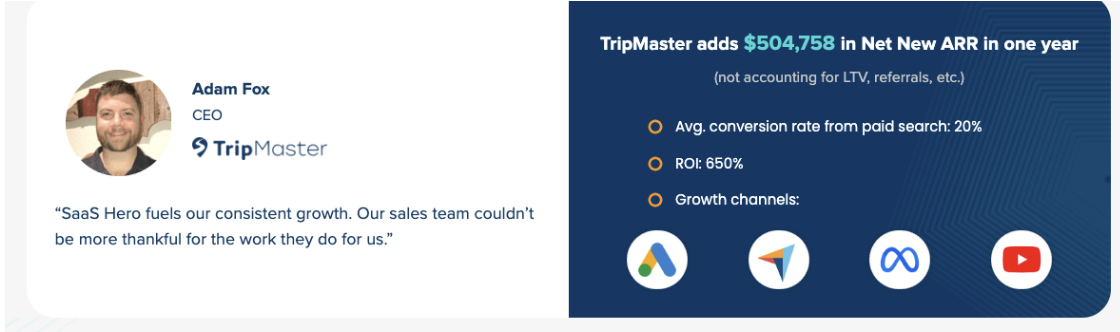
- Schedule a discovery call with SaaSHero to audit your tracking and apply the revenue-first framework that produced $500k+ Net New ARR for TripMaster.
Executive Summary and Core Concepts for Google Ads DevTools
The Google Ads DevTools ecosystem consists of four primary components that work together to improve conversion accuracy. Browser DevTools provides real-time debugging so you can confirm that tags and scripts behave as expected. Google Ads API v24 with free access tiers enables automated reporting and campaign changes based on reliable data. GTM server-side containers route events in a privacy-compliant way while protecting against ad blockers. Tag Assistant then verifies that all tags fire correctly across key user journeys.
Within this ecosystem, three concepts support accurate attribution. GCLID parameters connect ad clicks to downstream conversions. Server-side tagging protects measurement from browser restrictions and consent loss. API Explorer lets you test and automate campaigns using this cleaner conversion data.
The 5-step implementation framework follows a clear sequence. Audit current tracking accuracy. Set up server-side infrastructure. Verify tag firing with DevTools. Improve based on data gaps. Scale successful configurations across campaigns and markets. Critical 2026 updates include enhanced API capabilities for Lead Gen conversions and CartDataSalesView, mobile event tracking improvements, and the fact that Consent Mode v2 has been mandatory since March 2024 for EEA/UK traffic to retain Google Ads remarketing and measurement capabilities.
Google Ads DevTools Ecosystem in Practice
Chrome DevTools forms the base toolkit for debugging Google Ads tracking through the Network and Console tabs. The API’s free tier structure enables campaign management automation without upfront costs, which suits most B2B SaaS teams. GTM Preview and Debug mode then provide real-time tag verification, while server-side containers avoid many client-side limitations such as ad blockers and ITP.
The shift from client-side to server-side tracking addresses fundamental accuracy problems. EU consent rejection rates average about 55% overall, reaching 60-70% in Germany and 55-65% in the Netherlands. iOS ATT and Safari ITP create additional attribution gaps that further reduce visible conversions. The following comparison shows why server-side tracking has become essential for reliable conversion measurement, highlighting how it increases data accuracy and removes ad blocker losses that affect traditional setups.
| Metric | Client-side (Fraud-prone) | Server-side (Secure ROAS) |
|---|---|---|
| Data Accuracy | 60-70% | Some implementations reach 95–99% total conversion capture |
| Conversion Capture | 60-70% | +10-40% |
| Ad Blocker Impact | 30-40% loss | Bypassed |
Now that you have the ecosystem context and understand why server-side tracking matters, you can apply the 5-step framework to your own Google Ads setup.
5-Step Google Ads DevTools Implementation Framework
Step 1: Audit Current Tracking Accuracy
Start by measuring how much conversion data your current setup misses. Compare Google Ads conversions with CRM or product analytics to estimate the gap. Review consent banner behavior and ad blocker impact across your main markets. Document which tags, pixels, and APIs currently send conversion events so you can remove duplicates later.
Step 2: Set Up Server-Side Infrastructure
Configure a server-side GTM container using Google Cloud Run or App Engine hosting. This container receives events from your website or app and forwards them to Google Ads and other platforms. Place a Conversion Linker tag in the server container to fix common attribution failures. Implement data layer events such as dataLayer.push({event: 'conversion', value: 100}); and confirm that they reach the server container.
Step 3: Verify Tag Firing with DevTools
Use Chrome DevTools and GTM Preview mode to confirm that your new setup works correctly. Open Chrome DevTools with F12, move to the Network tab, and filter by “Img” or “XHR” to watch tag requests. Check for GCLID parameters in conversion tracking requests and confirm that tags fire on the correct pages without JavaScript errors. Use the Console tab to find missing variables or trigger failures. Google Tag Assistant Chrome Extension provides visual verification when you do not use GTM.
Step 4: Optimize Based on Data Gaps
After verification, focus on closing the remaining gaps in your data. Route GA4 events through the server container to strengthen attribution and reduce reliance on browser cookies. Adjust triggers so that only meaningful actions, such as qualified demo requests or trial activations, count as conversions. Fix consent mode issues and missing GCLID values that still limit visibility in key regions.
Step 5: Scale Successful Configurations
Once you trust your tracking, scale automation and coverage. Expand server-side tracking to all core funnels, including product-led flows and multi-step demos. Use the Google Ads API to automate reporting and bidding based on high-quality conversion events. Replicate proven configurations across campaigns, regions, and business units while keeping a single source of truth for tags and events.
Google Ads API Access Setup in 5 Clear Steps
Google Ads API v24 remains free to start through its Explorer and Basic access tiers. Follow these steps to establish API access in a structured way. First, create OAuth credentials in Google Cloud Console so your application can authenticate securely. Second, generate a developer token in your Google Ads account to authorize API requests. Third, configure your API client with these authentication details so it can communicate with Google’s servers. Fourth, test basic queries using API Explorer to confirm that your connection works as expected. Fifth, after successful tests, implement automated reporting or campaign management scripts that use this authenticated access.
Browser DevTools Checks for Google Ads Tags
Use Chrome DevTools to confirm that your Google Ads tags behave correctly in real time. Open DevTools with F12, move to the Network tab, and filter by “Img” or “XHR” to monitor tag requests. Look for GCLID parameters in conversion tracking requests and confirm that tags fire on the right pages without JavaScript errors. Use the Console tab to spot missing variables or trigger issues that block conversions. When you do not use GTM, rely on Google Tag Assistant Chrome Extension for visual verification.
Server-Side GTM Configuration for Ads Conversions
Set up your server-side GTM container to handle Google Ads conversions reliably. Host the container on Google Cloud Run or App Engine for scalable performance. Add a Conversion Linker tag in the server container so it can stitch sessions and conversions correctly. Implement data layer events such as dataLayer.push({event: 'conversion', value: 100}); and confirm in Preview mode that these events trigger the right tags. Route GA4 events through the server container to strengthen attribution and reduce data loss.
Google Ads HTML Tag Setup and Mobile Tracking
Use the global site tag when you need a direct HTML implementation. Add <script async src="https://www.googletagmanager.com/gtag/js?id=AW-CONVERSION_ID"></script> followed by the configuration script on your site. For mobile app tracking, integrate SKAdNetwork for iOS attribution, which reports installs with a 24-72 hour delay. Use the DevTools Network tab and mobile debugging tools to confirm that app install events and conversion values send correctly to Google Ads.
Troubleshooting Common Errors and Pitfalls
Accurate tracking requires active monitoring for common Google Ads issues. Frequent problems include duplicate conversions from parallel implementations, API rate limits in v24, and Consent Mode v2 compliance failures. Confirm that you use a single implementation source and dedicated custom events to avoid duplicate firing. Check the DevTools Console for JavaScript errors and confirm that GCLID parameters appear in relevant requests. These tracking failures inflate CAC and distort ROAS for B2B SaaS companies, even when campaigns appear healthy on the surface.
Server-side tracking and the 5-step framework help prevent many of these issues. A clean audit, a single source of truth for tags, and consistent DevTools checks keep your data stable as you scale budgets.
SaaS Tracking Optimization and Maturity Model
B2B SaaS tracking maturity usually progresses through three stages. Beginner setups rely on basic conversion tags and limited debugging. Intermediate setups add API integration for automated bidding and reporting. Advanced setups combine server-side tracking with CRM integration so you can optimize for pipeline and revenue instead of only form fills.
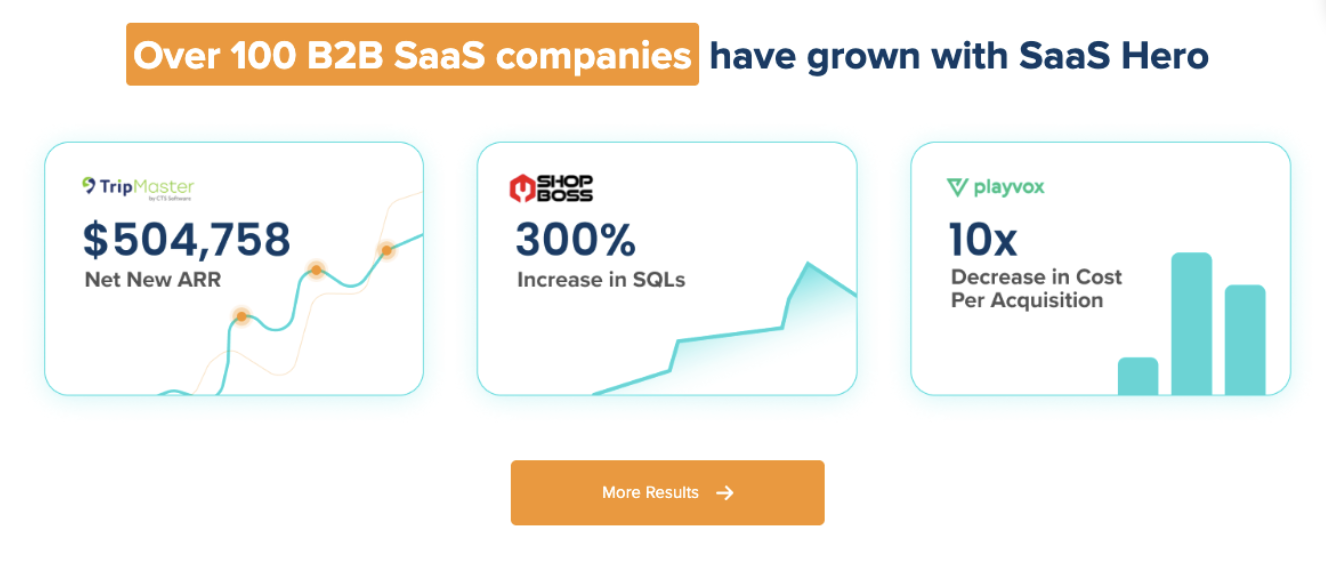
Advanced implementations support ROAS improvement through negative keyword automation, audience refinement, and competitor conquesting strategies. SaaSHero’s methodology delivered 650% ROI and $504k Net New ARR for TripMaster and also reduced CPL by 10x for Playvox through strategic account restructuring. These results illustrate what becomes possible once tracking reaches the advanced stage of the maturity model.
Illustrative SaaS Scenarios Using DevTools
Three common SaaS roles highlight how DevTools and this framework solve real problems. The overwhelmed founder who runs weekend campaigns manually needs API automation and server-side tracking to reclaim time and trust the numbers. The frustrated VP of Marketing needs reliable server-side tracking and CRM integration to prove pipeline impact to the CEO. The post-funding scaler who manages $50k monthly budgets requires enterprise-grade tracking accuracy to protect ROAS and justify continued spend.
Each of these scenarios benefits from systematic DevTools implementation that closes attribution gaps and improves spend efficiency. If you recognize your situation in any of these examples, schedule a call to identify which tracking improvements will deliver the highest ROAS impact for your specific setup.
Frequently Asked Questions
Is Google Ads API free to use?
Google Ads API v24 offers free access through Explorer and Basic tiers. The Explorer tier provides limited quota for testing and small-scale operations. The Basic tier supports higher volumes without cost for most use cases. The Standard tier requires Google Premier Partner status and offers much higher quota for enterprise implementations.
What are the most useful DevTools for mobile ads tracking?
Chrome DevTools Network tab combined with GTM Preview mode gives strong coverage for mobile web tracking. For iOS apps, use Xcode debugging tools alongside SKAdNetwork attribution to confirm install and post-install events. Android apps benefit from Android Studio debugging and Google Analytics for Firebase integration. Server-side GTM containers help bypass many mobile ad-blocker limitations.
Should I use GTM or HTML tags for Google Ads?
Most B2B SaaS teams gain more flexibility from GTM than from direct HTML tags. GTM supports Preview mode, centralized tag management, and faster testing of new conversion definitions. HTML tags can load slightly faster but require developer time for every update. For teams that iterate often, GTM usually provides a better balance of speed and control.
How do I verify Consent Mode v2 compliance?
Use Chrome DevTools Network tab to inspect gtag requests and confirm that gcs parameters appear correctly. G111 indicates that both Google Ads and Google Analytics have consent, while G100 shows complete denial. Google Tag Assistant displays consent states and transitions visually. Proper implementation prevents conversion under-reporting in EU markets and protects remarketing capabilities.
What causes Google Ads conversion tracking failures?
Common causes include missing GCLID parameters, JavaScript errors that block tag execution, duplicate implementations that create false positives, and incorrect trigger configurations. Server-side tracking resolves many client-side failures while improving attribution accuracy by the same 10-40% range discussed earlier.
Conclusion and Next Steps
Using Google Ads DevTools within the 5-step framework of Audit, Setup, Verify, Optimize, and Scale turns B2B SaaS attribution into a predictable system. Server-side tracking, API automation, and consistent debugging produce high accuracy, with some implementations reaching the 95-99% levels mentioned earlier. This level of reliability supports confident ROAS optimization and meaningful CAC reduction.
Scale your implementation with SaaSHero’s flat-fee, month-to-month Google Ads partnerships that focus on revenue-first tracking and optimization. Request a tracking and DevTools audit to review your current setup and uncover immediate improvement opportunities.