




Last updated: March 10, 2026
Key Takeaways
- Privacy changes in 2026 like iOS ATT and Safari cookie deletion remove about 30% of traditional attribution data, so GCLID tracking becomes essential for B2B SaaS revenue attribution.
- A 7-step blueprint that includes auto-tagging, server-side GTM, and offline conversion uploads can raise attribution accuracy from 60–80% to about 95%.
- Store GCLID in CRM custom fields such as HubSpot gclid__c or Salesforce Google_Click_ID__c, and use mid-funnel milestones for sales cycles longer than 90 days.
- Avoid pitfalls like client-side data loss and attribution expiry by testing GCLID persistence and deploying enhanced conversions as a fallback.
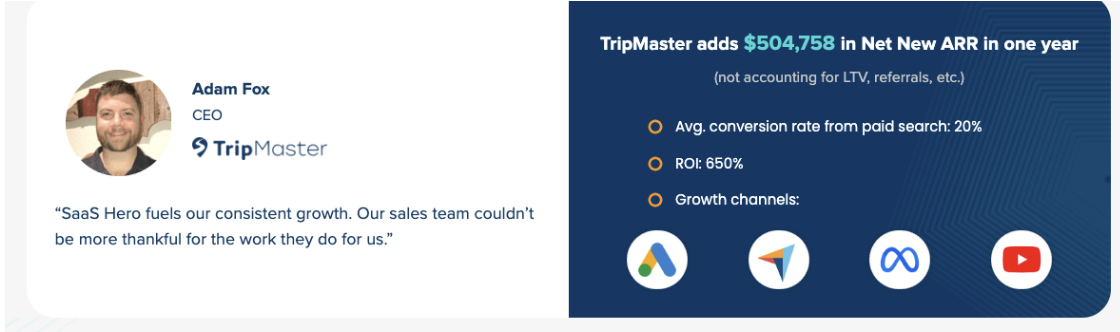
- SaaSHero delivers proven setups such as TripMaster’s $504k ARR with 650% ROI; schedule a discovery call with SaaSHero for revenue-focused implementation.
Core GCLID Concepts for B2B SaaS Attribution
Accurate GCLID tracking in B2B SaaS rests on five core components that work together. GCLID, or Google Click ID, acts as the unique identifier that links each ad click to downstream conversions. Auto-tagging in Google Ads appends this parameter to all ad URLs and creates the base for tracking. Offline conversions let you upload CRM data back to Google Ads so the platform can attribute revenue. Enhanced conversions provide fallback matching by using hashed customer data. Server-side tracking captures data with about 95% accuracy compared with the limits of client-side tracking.
The mental model follows a clear sequence. Click Capture comes first, followed by Persistence, CRM Pass, Revenue Upload, and Smart Bidding optimization. Each stage must work reliably to maintain attribution integrity across long B2B SaaS sales cycles.
|
Tool |
Purpose |
Implementation |
|
Google Ads |
Auto-tagging and offline uploads |
Enable in account settings |
|
GTM Server-Side |
High-accuracy data capture |
Server container configuration |
|
HubSpot/Salesforce |
GCLID storage and ARR mapping |
Custom field creation |
|
Zapier/API |
Automation and reporting |
Workflow triggers |
7-Step Blueprint for Accurate GCLID Tracking in B2B SaaS
Step 1: Enable Auto-Tagging in Google Ads
Turn on auto-tagging in your Google Ads account settings as the first step. This setting appends the GCLID parameter to all ad URLs and creates the foundation for consistent attribution tracking. Confirm that all campaigns use final URLs that accept query parameters.
Step 2: Capture and Store GCLID with JavaScript
Place a capture script on all landing pages so every GCLID value gets stored when a visitor arrives. The script below reads the URL, extracts the GCLID, and saves it in both sessionStorage and localStorage for later use.
function captureGclid() { const urlParams = new URLSearchParams(window.location.search); const gclid = urlParams.get(‘gclid’); if (gclid) { sessionStorage.setItem(‘gclid’, gclid); localStorage.setItem(‘gclid’, gclid); } } captureGclid();
This approach keeps the GCLID available across pages and sessions until the browser clears storage.
Step 3: Persist GCLID Through CRM Hidden Fields
Use hidden form fields to move the stored GCLID into your CRM on every form submission. Configure your forms so these fields automatically populate from sessionStorage or localStorage. Map each hidden field to a permanent custom field in your CRM.
|
CRM Platform |
Field Name |
Field Type |
|
HubSpot |
gclid__c |
Single-line text |
|
Salesforce |
Google_Click_ID__c |
Text(255) |
|
Pipedrive |
gclid |
Text field |
This setup ensures that every lead and contact record can store the original click identifier for later revenue mapping.
Step 4: Configure Server-Side GTM for Reliable Capture
Deploy Google Tag Manager Server-Side to improve tracking accuracy from about 60–80% to roughly 95% compared with client-side setups. Server-side tracking reduces data loss from ad blockers and browser restrictions. Configure the server container to receive and process conversion events in a structured format.
{ “event_name”: “conversion”, “gclid”: “{{GCLID}}”, “conversion_value”: “{{Revenue}}”, “currency”: “USD”, “timestamp”: “{{ConversionTime}}” }
Send these events from your website or backend to the server container so Google Ads receives consistent, high-quality conversion data.
Step 5: Set Up Offline Conversion Uploads
Automated offline conversion uploads connect closed-won deals and key milestones back to the original ad click. Build workflows that pull GCLID and revenue data from your CRM and send them to Google Ads on a regular schedule. For B2B SaaS with sales cycles longer than 90 days, use mid-funnel milestones to stay within the GCLID window.
Configure milestones such as qualified leads or booked demos so Google Ads receives conversion signals before the 90-day limit.
POST https://googleads.googleapis.com/v14/customers/{customer_id}/offlineUserDataJobs { “job”: { “type”: “CUSTOMER_MATCH_USER_LIST”, “customerMatchUserListMetadata”: { “userList”: “customers/{customer_id}/userLists/{user_list_id}” } } }
Use this pattern as a reference when building your own offline upload jobs through the Google Ads API.
Step 6: Enable Enhanced Conversions as a Fallback
Enhanced conversions act as a backup when GCLID capture fails or disappears. Configure your tags to hash customer email and phone data, then send those values to Google for probabilistic matching. This method recovers attribution that would otherwise be lost.
gtag(‘config’, ‘AW-CONVERSION_ID’, { ‘enhanced_conversions’: { ’email’: hashEmail(customerEmail), ‘phone_number’: hashPhone(customerPhone) } });
Use this setup alongside GCLID tracking so Google Ads can match conversions even when browser privacy features block click identifiers.
Step 7: Validate and Test the Full GCLID Flow
Thorough testing confirms that every stage of your GCLID implementation works as expected. Use the Google Ads conversion tracking debugger and your CRM reports to verify GCLID capture and attribution accuracy. Run test conversions from ad click through form submission and confirm that the GCLID appears correctly in CRM records.
Repeat these tests after major site changes, CRM updates, or tag manager edits so you can catch issues before they affect real campaigns.
Offline Conversion Tracking for SaaS: Best Practices and Common Pitfalls
Offline conversion tracking in SaaS often fails because of gaps in data capture and storage. iOS devices with ATT, Safari’s Intelligent Tracking Prevention, and ad blockers frequently remove GCLIDs. These gaps directly weaken your ability to attribute revenue to specific campaigns.
|
Pitfall |
Impact |
Solution |
|
Client-side only tracking |
About 30% data loss |
Implement server-side GTM |
|
90-day attribution expiry |
ARR undercount |
Upload mid-funnel milestones |
|
Cross-domain GCLID loss |
Attribution gaps |
Configure linker parameters |
|
Agency focus on vanity metrics |
Ignores actual revenue |
Use revenue-first reporting |
Testing GCLID persistence across your full conversion path provides the most critical safeguard. Append ?gclid=test123 to landing page URLs and confirm that this value survives redirects, payment processors, and thank-you pages. Any break in that chain removes attribution for those conversions.
For SaaS companies with sales cycles longer than 90 days, mid-funnel milestones keep attribution active. Define events such as Qualified Lead or Demo Completed so Smart Bidding receives signals before the GCLID expires. This approach also gives your team earlier insight into which campaigns create real pipeline.
Why SaaSHero’s Server-Side GCLID Setups Work for B2B SaaS
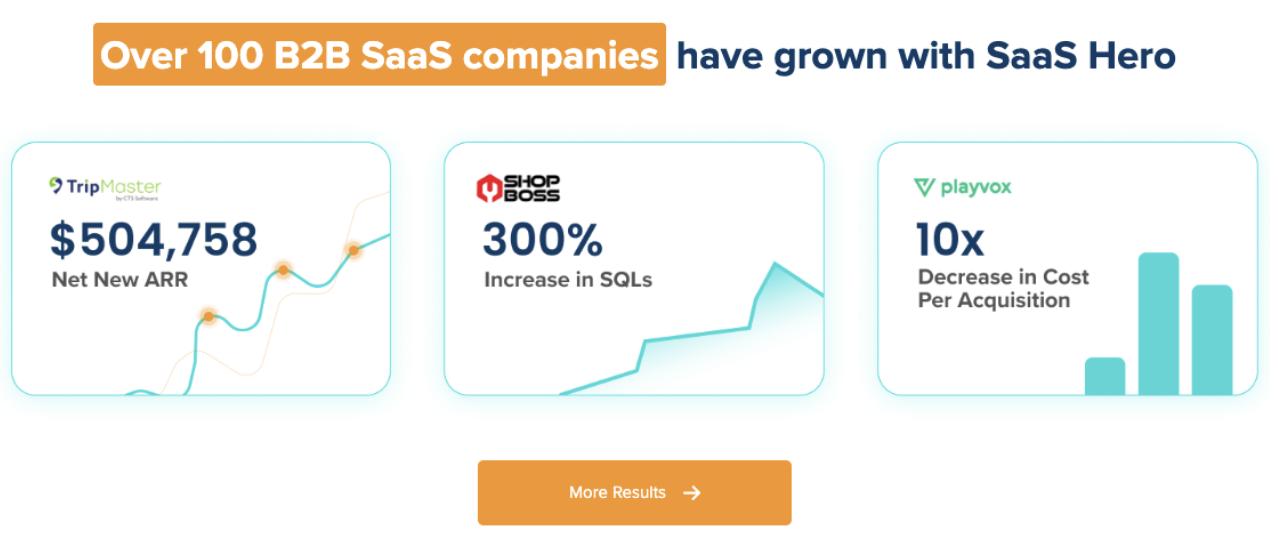
SaaSHero’s specialized B2B SaaS attribution setups consistently drive measurable revenue growth. Their TripMaster implementation generated $504k in net new ARR with a 650% ROI. TestGorilla reached an 80-day payback period that supported their $70M Series A funding.
SaaSHero avoids vanity metrics and focuses on revenue outcomes that matter to B2B SaaS leaders. Their flat-fee, month-to-month model aligns their incentives with your growth instead of spend. Each senior account manager handles a maximum of 8–10 clients, which keeps attention on detailed tracking and attribution work.
The team integrates directly into your HubSpot or Salesforce environment and builds tracking that matches your actual sales process. They then maintain and refine that setup with ongoing reporting and improvements. Book a discovery call to improve attribution accuracy and scale profitable growth with confidence.
FAQ
How do I pass GCLID data to Salesforce for offline conversion tracking?
Passing GCLID data to Salesforce starts with a custom field on your Lead and Contact objects. Create a text field called Google_Click_ID__c and expose it to your form processor or integration tool. Use hidden form fields on your website to capture the GCLID from sessionStorage and map it to this Salesforce field through your form integration or Zapier.
Configure your offline conversion upload workflow so it reads Google_Click_ID__c when sending closed-won opportunities back to Google Ads. This connection lets Google attribute revenue to the original ad click.
What is the difference between server-side and client-side GCLID tracking accuracy?
Server-side GCLID tracking usually reaches about 95% accuracy, while client-side setups often stay between 60% and 80%. Client-side tracking loses data when ad blockers, cookie restrictions, and browser privacy features block scripts or clear identifiers. These issues prevent GCLID capture and break the link between click and conversion.
Server-side tracking processes data on your server before browser limits can interfere. This approach keeps more GCLIDs intact and produces more reliable attribution for B2B SaaS revenue tracking.
How should I configure attribution windows for B2B SaaS sales cycles longer than 90 days?
Google Ads limits GCLID attribution to 90 days, while many B2B SaaS sales cycles run 120 days or more. Configure mid-funnel conversion actions such as “Demo Completed” or “SQL Generated” that occur within the first 90 days. Import these events as offline conversions so Google Ads can see progress toward revenue.
Track final revenue in your CRM with custom attribution models that reference the original GCLID. This combination keeps Google’s bidding informed while your internal reporting covers the full sales cycle.
What backup methods work when GCLID capture fails?
Enhanced conversions provide the strongest backup when GCLID capture fails. This feature uses hashed customer email and phone data to match conversions to ad clicks. UTM parameter capture adds extra context about campaigns, ad groups, and keywords.
First-party data collection through progressive profiling can also fill attribution gaps over time. Run multiple tracking methods together, with GCLID as the primary source and enhanced conversions as the secondary layer for broader coverage.
How do I validate that my GCLID implementation works correctly?
Validation starts with end-to-end testing that mirrors a real user journey. Click your own ads or test URLs that include unique GCLID values, complete a form, and then check your CRM record. Confirm that the GCLID appears in the correct custom field and matches the value from the URL.
Use the Google Ads conversion tracking debugger to verify that uploads process without errors. Monitor your CRM for GCLID field population rates and set alerts for sudden drops. These alerts highlight implementation issues before they affect large portions of your traffic.
Conclusion and Next Steps for B2B SaaS GCLID Tracking
Accurate GCLID tracking turns B2B SaaS marketing from guesswork into predictable revenue planning. This 7-step blueprint gives you the technical foundation to connect every ad dollar to closed-won ARR. With that connection in place, your team can allocate budget with confidence and scale campaigns that prove their value.
Begin by testing your current implementation with the validation methods described above. Fix any gaps in capture, storage, or uploads before you increase spend. For a complete setup and ongoing improvements that protect revenue attribution accuracy, book a discovery call with SaaSHero’s specialized B2B SaaS team.