




Key Takeaways
- HubSpot Google Ads integration connects ad clicks to closed-won deals, giving B2B SaaS teams clear, accurate revenue attribution.
- Core benefits include real-time lead sync, offline conversions tracking $504k in Net New ARR, and strong ROAS for enterprise campaigns.
- Setup requires Marketing Hub Starter or higher, a working tracking code, and an 8-step process that includes GCLID capture and audience syncing.
- Common issues such as MCC limitations and tracking template conflicts are resolved by linking sub-accounts and using templates that start with {lpurl}.
- Advanced optimization with revenue dashboards and retargeting can drive 30–50% SQL improvements, and SaaSHero provides expert management for this setup.
Revenue-Focused Features & Benefits of HubSpot Google Ads Integration
The HubSpot Google Ads integration gives B2B SaaS teams the tools to tie ad spend directly to pipeline and revenue.
| Feature | Benefit | SaaS Impact |
|---|---|---|
| Real-time lead sync | Instant contact attribution | 80-day payback periods |
| Offline conversions | Revenue attribution | $504k Net New ARR tracking |
| ROI dashboards | Pipeline visibility | Significant SQL lift (see below) |
| Audience retargeting | CRM-based targeting | Enterprise-level ROAS (3.2x) |
Offline conversion tracking enables Google Ads bidding algorithms to optimize for revenue-producing clicks rather than just form fills, typically improving SQL volume by 30-50% at the same spend level. High-performing enterprise tech campaigns in 2025 average a 3.2 ROAS when properly integrated with CRM systems like HubSpot.
Prerequisites & Setup Preparation for HubSpot Google Ads
Confirm a few technical and access requirements before you connect Google Ads to HubSpot.
- Admin-level access to your Google Ads account
- HubSpot Marketing Hub Starter subscription (with Ads add-on), Professional, or Enterprise edition
- HubSpot tracking code installed on your website
- At least one active Google Ads campaign
- Basic understanding of attribution models and CRM lifecycle stages
The integration process usually takes 30–60 minutes for the first setup. Watch for limitations with Google Ads Manager accounts (MCC), which restrict some enhanced conversion features and may require direct sub-account connections.
Prepare by confirming permissions, checking that your HubSpot tracking tag is installed correctly, and enabling enhanced conversions in your Google Ads account settings. Once you complete these checks, you can move into the actual integration steps.
Step-by-Step: Integrate Google Ads with HubSpot
Use this sequence to connect your Google Ads account to HubSpot without breaking tracking.
- Navigate to HubSpot Ads Settings: Go to Settings > Marketing > Ads in your HubSpot account.
- Connect Your Account: Click “Connect Account”, then select Google Ads from the list of available networks.
- Authorize Access: Sign in with your Google credentials and approve the requested permissions so HubSpot can access your ad accounts.
- Select Ad Accounts: Choose which Google Ads accounts to link. MCC accounts have limitations, so you may need to connect individual sub-accounts.
- Enable Auto-tracking: Turn on auto-tracking so HubSpot can append tracking parameters to your ad URLs automatically.
- Configure Conversion Mapping: Set up conversion events that sync HubSpot lifecycle stage changes with Google Ads.
- Sync Audiences: Configure audience sharing between platforms so you can run retargeting and CRM-based campaigns.
- Test Data Flow: Confirm that campaign data appears in your HubSpot Ads dashboard and that attribution works as expected.
Initial synchronization may take a few hours depending on data volume, with performance metrics appearing shortly after in the HubSpot Ads dashboard. A frequent mistake involves missing UTM parameters caused by incorrect tracking templates, so make sure your templates start with {lpurl}.
Teams with complex account structures or MCC constraints often benefit from expert help. Book a discovery call with SaaSHero for a setup that respects these technical limits while preserving accurate tracking.
Troubleshoot Common HubSpot Google Ads Integration Errors
Most HubSpot and Google Ads issues fall into a few repeatable patterns that you can resolve quickly.
- MCC Account Limitations: Google Ads Manager accounts cannot sync form submission conversion events using enhanced conversions. The workaround is to link individual sub-accounts directly.
- Permission Failures: “Insufficient permissions” errors occur when users lack admin-level access. Fix this by granting the connecting user full admin permissions for the Google Ads account.
- Tracking Template Conflicts: “The HubSpot tracking template has been edited” error appears when templates do not start with {lpurl}. Delete custom templates and refresh tracking in HubSpot.
- Cloned Campaign Issues: Cloned campaigns copy hardcoded utm_campaign names and Campaign IDs, which creates attribution errors. Remove tracking templates from cloned campaigns and let HubSpot auto-tracking rebuild them.
- Sync Delays: After you fix errors, HubSpot automatically tries to reapply tracking templates within about 15 minutes.
For recurring or complex problems, bring in expert troubleshooting and a structured account audit.
HubSpot Google Ads Conversion Tracking & Revenue Attribution for SaaS
B2B SaaS conversion tracking works best when it focuses on revenue outcomes instead of simple form fills. HubSpot syncs lifecycle stage changes to Google Ads using Enhanced Conversions for Leads, which requires contacts to have a populated Google Click ID (GCLID) or shared contact data.
Use a clear sequence for implementation so each piece supports the next.
- GCLID Tracking: First, capture the Google Click ID at form submission and store it in HubSpot alongside contact records. This ID lets Google match offline conversions to the original ad click.
- Offline Conversion Setup: With GCLID tracking in place, configure HubSpot workflows that fire conversion events when contacts move through lifecycle stages such as MQL, SQL, Opportunity, and Closed-Won.
- Revenue Attribution: Use these conversion events to build revenue attribution dashboards that show closed-won revenue by first-touch source and CAC payback by cohort.
- Pipeline Metrics: Track SQL generation, opportunity creation, and deal progression so you can adjust campaigns based on downstream revenue, not just lead counts.
For example, a competitor conquest campaign targeting “Salesforce alternatives” can be tuned around the keywords that create the highest-value closed deals instead of the ones that only drive the most form submissions.
Advanced Google Ads Management & Optimization with HubSpot
HubSpot Google Ads ROI Reporting for B2B SaaS
HubSpot’s native Google Ads integration imports click and cost data for attribution in B2B SaaS revenue operations, which allows reporting that connects ad spend to pipeline and revenue. Build custom dashboards that show CAC by campaign, LTV:CAC ratios, and payback periods.
Retargeting Audiences from HubSpot CRM Data
Use HubSpot CRM data to create focused Google Ads audiences based on lifecycle stages, deal values, and behavior. Retarget visitors who viewed pricing pages, contacts who attended demos but did not convert, or existing customers who are ready for upsell offers.
2026 updates include Google Ads’ revived Website Optimizer for direct A/B testing of landing pages and expanded Performance Max reporting that offers better channel transparency. These features, combined with HubSpot conversion tracking, support more advanced testing and improvement cycles.
Advanced tactics include heuristic conversion rate optimization, weekly ARR reporting, and competitor conquest campaigns that speak directly to pain points and switching scenarios.
Why SaaSHero for HubSpot-Integrated Google Ads Management
SaaSHero focuses exclusively on B2B SaaS Google Ads and brings deep HubSpot integration experience to every account. Unlike traditional agencies that charge a percentage of ad spend, SaaSHero uses transparent flat retainers starting at $1,250 per month with month-to-month flexibility.
Proven results include:
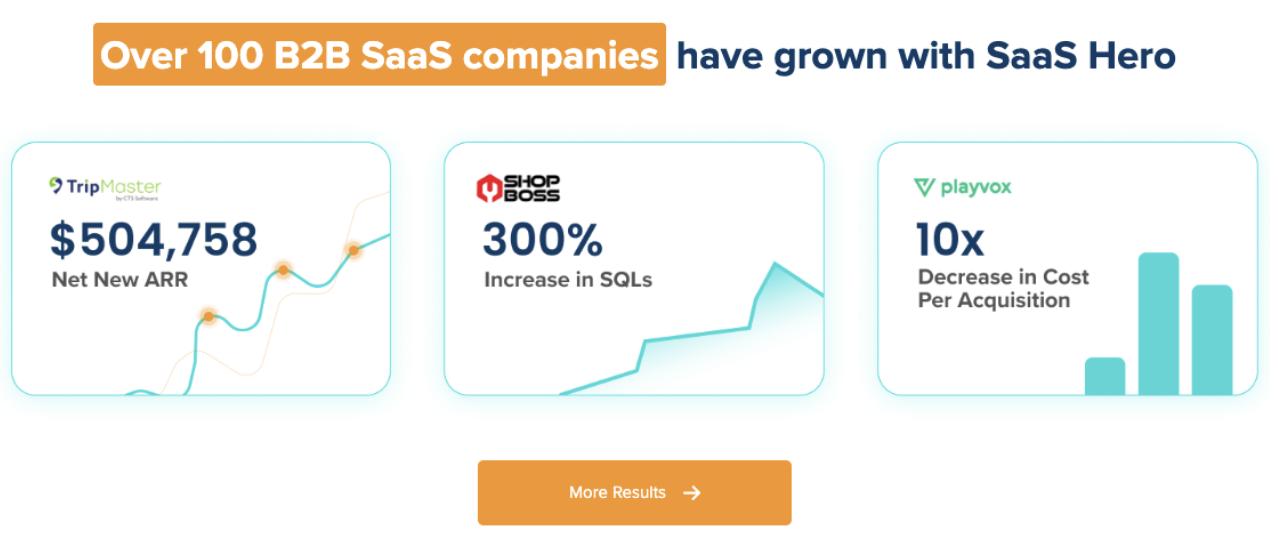
- $504k Net New ARR generated for TripMaster
- 10x cost-per-lead reduction for Playvox
- 80-day payback periods for TestGorilla
- Senior-led account management with dedicated Slack collaboration
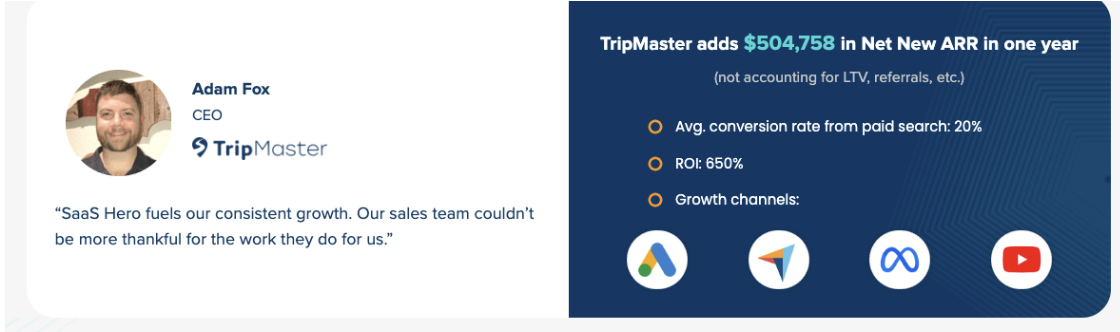
SaaSHero’s model removes the conflict of interest that comes with percentage-based pricing and focuses on Net New ARR growth. Services cover full HubSpot setup, conversion tracking implementation, and ongoing optimization centered on revenue attribution.
Book a discovery call to review your current integration and discuss your scaling goals.
Summary & Practical Next Steps
Effective Google Ads management with HubSpot integration depends on clean setup, continuous refinement, and revenue-focused measurement. Core actions include verifying prerequisites, completing the 8-step integration, testing attribution accuracy, enabling offline conversion tracking, and building revenue dashboards.
Next, run a full audit of your current configuration, document tracking gaps, and expand winning campaigns based on ARR contribution instead of vanity metrics. For hands-on support, work with specialists who understand B2B SaaS unit economics and can manage both Google Ads and HubSpot together.
FAQ
How long does it take to see ROI from Google Ads HubSpot integration?
Most B2B SaaS companies see early results within 30–60 days, with full ROI usually appearing within about 80 days. This window reflects longer B2B sales cycles and the time Google’s algorithms need to learn from downstream conversion data. Many companies with strong integration reach payback in this range, as shown by the TestGorilla case mentioned above.
What should I do if my MCC account will not sync with HubSpot?
Google Ads Manager accounts have limits with HubSpot enhanced conversion features. The recommended approach is to connect each individual sub-account directly to HubSpot instead of the MCC parent account.
How does this integration help with SaaS-specific metrics?
The integration supports tracking of key B2B SaaS metrics such as Customer Acquisition Cost (CAC), Lifetime Value (LTV), Monthly Recurring Revenue (MRR), and Annual Recurring Revenue (ARR). By tying Google Ads data to HubSpot CRM, you can adjust campaigns based on real revenue outcomes instead of lead volume alone, which improves ad efficiency and unit economics.
What does professional management of this integration cost?
Professional Google Ads management with HubSpot integration varies by spend and complexity. SaaSHero’s transparent pricing starts at $1,250 per month for dedicated management up to $10k in ad spend, with higher tiers for larger budgets and multi-channel work. This flat-fee model keeps recommendations aligned with performance instead of agency revenue.
Can this integration handle enterprise-level ad spend?
Yes, the HubSpot Google Ads integration scales well for enterprise budgets. SaaSHero manages accounts spending $50k or more each month using sophisticated attribution models, custom conversion tracking, and advanced audience segmentation. Strong initial setup and ongoing revenue-based optimization keep these programs on track.
Ready to improve your Google Ads performance with a clean HubSpot integration? Book a discovery call with SaaSHero’s B2B SaaS team to align the integration with your growth targets.