




Written by: Aaron Rovner, Founder, Saas Hero
Key Takeaways for SaaS Revenue Tracking
- Proper GA4 landing page analytics setup prevents data loss from “(not set)” values and supports accurate revenue attribution for SaaS marketing ROI.
- Follow the 7-step process with Google Tag Manager to track key SaaS events like demo requests (“generate_lead”) and trial signups (“sign_up”).
- Enable enhanced measurement, then customize form tracking to avoid double-counting on AJAX forms common in Webflow and Unbounce.
- Link GA4 with your CRM and Google Ads for full-funnel attribution from ad clicks to closed deals, targeting 15-25% landing page conversion rates.
- Companies see 25-35% ROI improvements; get expert implementation help from SaaSHero’s analytics specialists.
Prerequisites for Google Analytics Landing Page Setup
Confirm these pieces are in place before you start configuring landing page analytics.
- Active GA4 property with admin access
- Google Tag Manager container configured on your domain
- Landing page platform (Unbounce, Webflow, or custom)
- CRM integration (HubSpot, Salesforce, or Pipedrive)
- Google Ads account with admin permissions
Define your SaaS-specific landing page metrics before setup. Key events should include demo requests tracked as “generate_lead”, free trial signups tracked as “sign_up”, and pricing page visits. The complete setup usually takes 1-2 hours and covers critical pitfalls like iOS tracking limitations and consent-related data loss.
If your implementation involves server-side tracking or advanced attribution modeling, the complexity increases significantly. For these scenarios, professional setup services typically range from $1,000-$2,000 and provide enterprise-grade accuracy from day one.
7-Step Landing Page GA4 Report Setup Overview
| Step | Action | Purpose | Time Required |
|---|---|---|---|
| 1 | Create GA4 Property | Establish tracking foundation | 10 minutes |
| 2 | Install Google Tag | Enable data collection | 15 minutes |
| 3 | Configure Enhanced Measurement | Automatic event tracking | 5 minutes |
| 4 | Set GA4 Key Events | Define SaaS conversions | 20 minutes |
| 5 | Configure GTM Tracking | Custom event implementation | 30 minutes |
| 6 | Link CRM and Ads | Revenue attribution | 15 minutes |
| 7 | Build Custom Reports | SaaS-focused analytics | 20 minutes |
This systematic approach creates complete tracking coverage and avoids common configuration errors that weaken SaaS analytics.
Step-by-Step GA4 Landing Page Setup for SaaS
Step 1: Create a GA4 Property for Your SaaS Site
Navigate to Google Analytics and create a new GA4 property specifically for your SaaS domain. During property setup, select “Business objectives” and choose “Generate leads” so default reports highlight B2B SaaS metrics like demo requests and trial signups. Configure your property timezone to match your business operations, since GA4 treats sessions crossing midnight as a single session, which can skew landing page attribution if the timezone does not match when users actually visit.
Step 2: Install the Google Tag with GTM
Install the GA4 configuration tag through Google Tag Manager for flexibility and easier maintenance. Create a new GTM container if needed, then add the GA4 Configuration tag with your Measurement ID. Set the trigger to “All Pages”, and confirm this tag fires before any custom event tags to prevent “(not set)” values in landing page dimensions.
Step 3: Enable GA4 Enhanced Measurement Safely
Open Admin > Data Streams > Web > Enhanced measurement. Turn on automatic tracking for scrolls, outbound clicks, site search, video engagement, and file downloads. Turn off “Form interactions” if you plan custom form tracking, because automatic form detection can create double-counting issues with AJAX-based forms.
Step 4: Set GA4 Key Events for the SaaS Funnel
Configure SaaS-specific key events that map to your revenue funnel. Use “generate_lead” for demo requests and contact forms, since it integrates cleanly with Google Ads Smart Bidding. Create “sign_up” events for free trial registrations and “purchase” events for subscription upgrades. Go to Admin > Events and mark these as key events after they appear in your reports, which usually takes 24-48 hours.
Step 5: Configure GTM for Precise Landing Page Tracking
Set up precise form tracking using GTM’s Custom HTML tag with JavaScript listeners. For Webflow forms, create a listener that pushes “wf_form_submit” dataLayer events on submission, capturing form_id, form_name, page_location, and page_title. Create matching Data Layer Variables and Custom Event triggers that fire GA4 Event tags with descriptive parameters for detailed reporting.
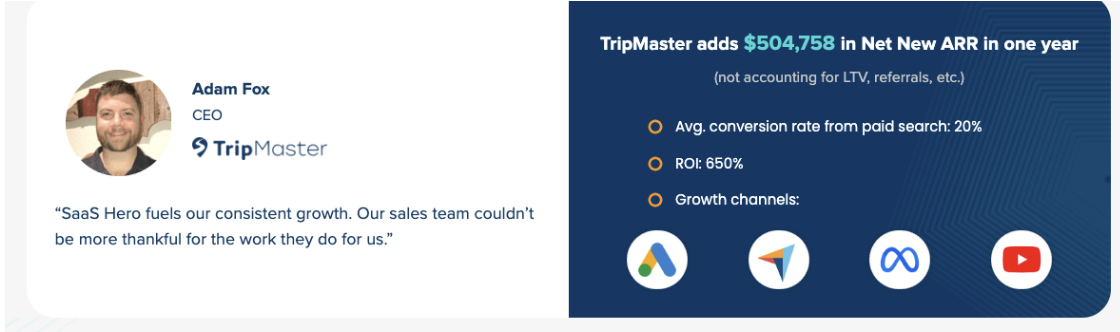
These technical configurations support accurate revenue tracking and attribution. SaaSHero’s setup services have helped clients like TripMaster achieve $504k ARR with 650% ROI by implementing this level of tracking precision.
Step 6: Link GA4 with Your CRM and Google Ads
Connect GA4 to your CRM system so you can track the full journey from ad click to closed deal. Import key events into Google Ads under Tools & Settings > Conversions > Import > Google Analytics 4 properties. This setup enables conversion-based bidding and accurate ROAS measurement. Configure Enhanced Conversions using hashed customer data to improve attribution accuracy while staying privacy compliant.
Step 7: Build Custom SaaS Landing Page Reports
Create custom reports in GA4 Explorations that focus on landing page performance by traffic source. Build funnels that show progression from landing page view to demo request to closed deal. Use Looker Studio to combine GA4 data with CRM revenue data so you can report on ROI and connect marketing spend directly to Net New ARR.
SaaS Landing Page Metrics and Post-Setup Validation
Validate your implementation with these SaaS-focused metrics and benchmarks.
| Metric | Target Range | SaaS Value |
|---|---|---|
| Landing Page Conversion Rate | 15-25% | Demo request rate |
| Form Completion Rate | 60-80% | Lead quality indicator |
| Session Duration | 2-4 minutes | Content engagement |
| Bounce Rate | 40-60% | Message-market fit |
Use GA4’s DebugView to confirm events fire correctly, and use GTM Preview mode to test triggers before publishing. Watch for “(not set)” values in landing page reports, which can indicate session timeout issues or missing page_view events. Proper validation delivers the 25-35% ROI improvements mentioned earlier by keeping attribution and optimization accurate.
Validate your setup with SaaSHero’s free audit to confirm your configuration matches these benchmarks.
Advanced GA4 for Revenue: Server-Side and Predictive Metrics
Once your core GA4 setup tracks conversions reliably, advanced features can further improve revenue attribution. Server-side tagging recovers 20-40% of conversion data lost due to ad blockers and browser restrictions by routing data through first-party domains, which keeps CAC and ROAS calculations closer to reality. Implement GTM server-side containers on Google Cloud Run with custom transport URLs such as track.yourdomain.com.
GA4’s predictive metrics use machine learning to identify high-value prospects that drive future revenue. Companies using GA4 predictive audiences can achieve higher customer acquisition rates compared to relying only on historical data. Configure predictive audiences for “likely to purchase” and “likely to churn” to refine ad targeting and retention campaigns.
Advanced implementations require skills in cloud infrastructure and machine learning configuration. Professional services help you set up these features correctly while staying compliant with privacy regulations.
Landing Page Analytics Checklist and Next Steps
Run through this checklist to finalize your landing page analytics setup.
- Verify all key events fire in GA4 DebugView
- Confirm CRM integration passes revenue data
- Test Google Ads conversion import
- Validate landing page attribution accuracy
- Set up automated reporting dashboards
With a solid analytics foundation in place, you can scale SaaS growth through data-driven decisions. Focus on improving conversion rates, lowering customer acquisition costs, and increasing lifetime value using precise attribution and audience insights.
Get SaaSHero’s Dedicated Campaign Manager for $1,250/mo to manage this analytics-driven growth engine for you.
Landing Page GA4 FAQ
How do I fix “Google Analytics landing page not set” errors?
The “(not set)” landing page error appears when GA4 sessions lack page_view events with page_location parameters. This often happens when sessions timeout after 30 minutes while browser tabs remain open, then users return and trigger events without a page reload. Fix this by extending session timeout in Admin > Data Streams > Configure tag settings > Adjust session timeout from 30 minutes up to 7 hours 55 minutes. As covered in Step 2, also confirm your GA4 configuration tag fires before any custom event tags in Google Tag Manager.
How long does landing page analytics setup take?
Basic GA4 landing page setup usually requires 1-2 hours for standard implementations. This work includes creating the GA4 property, installing tags, configuring enhanced measurement, setting key events, and adding basic GTM form tracking. Complex setups with server-side tracking, advanced attribution modeling, or multiple CRM integrations can take 4-8 hours. Professional implementation services typically complete enterprise-grade setups within 1-2 business days.
What GA4 key events should SaaS companies track on landing pages?
SaaS companies should track “generate_lead” for demo requests and contact forms, “sign_up” for free trial registrations, “view_item” for pricing page visits, and custom events like “webinar_registration” or “whitepaper_download”. Use “purchase” events for subscription upgrades and “begin_checkout” for payment page entries. Mark these as key events in GA4 Admin > Events so they count as conversions and support Google Ads bidding.
How do I track form submissions on SaaS landing pages with GA4?
Track form submissions using Google Tag Manager with either thank you page redirects or JavaScript listeners. For redirect-based tracking, create hidden thank you pages with unique URLs, set form redirects, and configure GTM Page View triggers. For inline confirmations, use Custom HTML tags with JavaScript that push dataLayer events on form submission, capturing form_id, form_name, and page details. Fire GA4 Event tags with “generate_lead” event names for lead forms or “form_submission” for other form types.
What causes GA4 landing page data discrepancies and how do I troubleshoot them?
Landing page discrepancies usually come from session timeout issues, missing page_view events, GTM configuration errors, or consent management problems. Sessions that cross midnight can create separate sessions without complete landing page data, as described in Step 1. Browser restrictions and ad blockers can also prevent tags from firing. Troubleshoot by checking GTM Preview mode for tag firing, using GA4 DebugView for real-time validation, extending session timeouts, confirming proper tag sequencing, and adding server-side tracking for privacy-compliant data collection.